
Translation
The boilerplate comes with pre-configured internationalization settings, providing a solid foundation for multilingual applications. It leverages Django's built-in translation capabilities, with HTML templates pre-configured for translation.
Additionally, it integrates third-party libraries: Rosetta for easier translation management through the admin panel, and Django-Parler for handling model translations. This setup allows you to start with a fully functional translation system out of the box, which you can easily customize to suit your project's needs.
Built-in Internationalization
Configure settings.py
Django provides built-in support for internationalization and localization. Configure languages available in settings.py.
# settings.py
...
# Add more languages as needed
LANGUAGES = [
    ('en', 'English'),
    ('fr', 'French'),
    ('es', 'Spanish'),
    ...
]
...
Generate translation files
Translation files (.po and .mo) are essential components that store the translated strings of your application's text content. These files enable Django to display your website in multiple languages by mapping original text to its translations:
1. Run the following command to create or update message files
# Extract translatable strings for a specific language
django-admin makemessages -l <language_code>

# Extract translatable strings for English
django-admin makemessages -l en

# Extract strings for English but ignore the 'env' directory
django-admin makemessages -l en -i env

# Extract translatable strings for all available languages
django-admin makemessages --all

# Extract strings for all languages but ignore the 'env' directory
django-admin makemessages --all -i env
Translation files (.po) files are stored in locale/<language_code>/LC_MESSAGES/ directory.
locale/
└── <language_code>/
    └── LC_MESSAGES/
        └── django.po
2. Add translations using one of these methods:
- Via Rosetta Interface (Recommended): Access translations through Django's admin panel at
/back/rosetta. This provides a user-friendly interface for translators to edit strings directly in the browser. - Manual Editing: Open the
.pofiles with a text editor or a dedicated PO editor (like Poedit) to add translations for each message string.
3. After completing the translations, compile the messages by running:
python manage.py compilemessagesThis creates binary .mo files that Django uses at runtime.
Marking text for translation
To make text available for translation, you need to mark it in your code:
1. in Python files:
from django.utils.translation import gettext_lazy as _

# For simple strings
title = _("Welcome to our site")

# For strings with variables
message = _("Hello, %(name)s") % {'name': user.name}
2. in templates:
{% load i18n %}

{# For simple text #}
{% translate "Welcome to our site" %}

{# For blocks of text #}
{% blocktranslate %}
    <p>This is a longer text block
    that spans multiple lines</p>
{% endblocktranslate %}

{# With variables #}
{% blocktranslate with name=user.name %}
    <p>Hello, {{ name }}</p>
{% endblocktranslate %}
Translation Overview: Complete guide to Django's internationalization system
Translation in Python Code: How to mark strings for translation in your Python code
Translation in Templates: Guide for using translation tags in Django templates
Localization: Detailed steps for creating and managing language files
Rosetta
Rosetta is a Django library that provides a web-based interface for easily editing .po translation files.
Access Rosetta
By default, Rosetta is accessible at /back/rosetta. For production environments, it's crucial to modify this path for security.
# saas > urls.py

urlpatterns += [
    # /!\ Change the default Rosetta path to a custom one for security
    path('back/rosetta/', include('rosetta.urls'))
]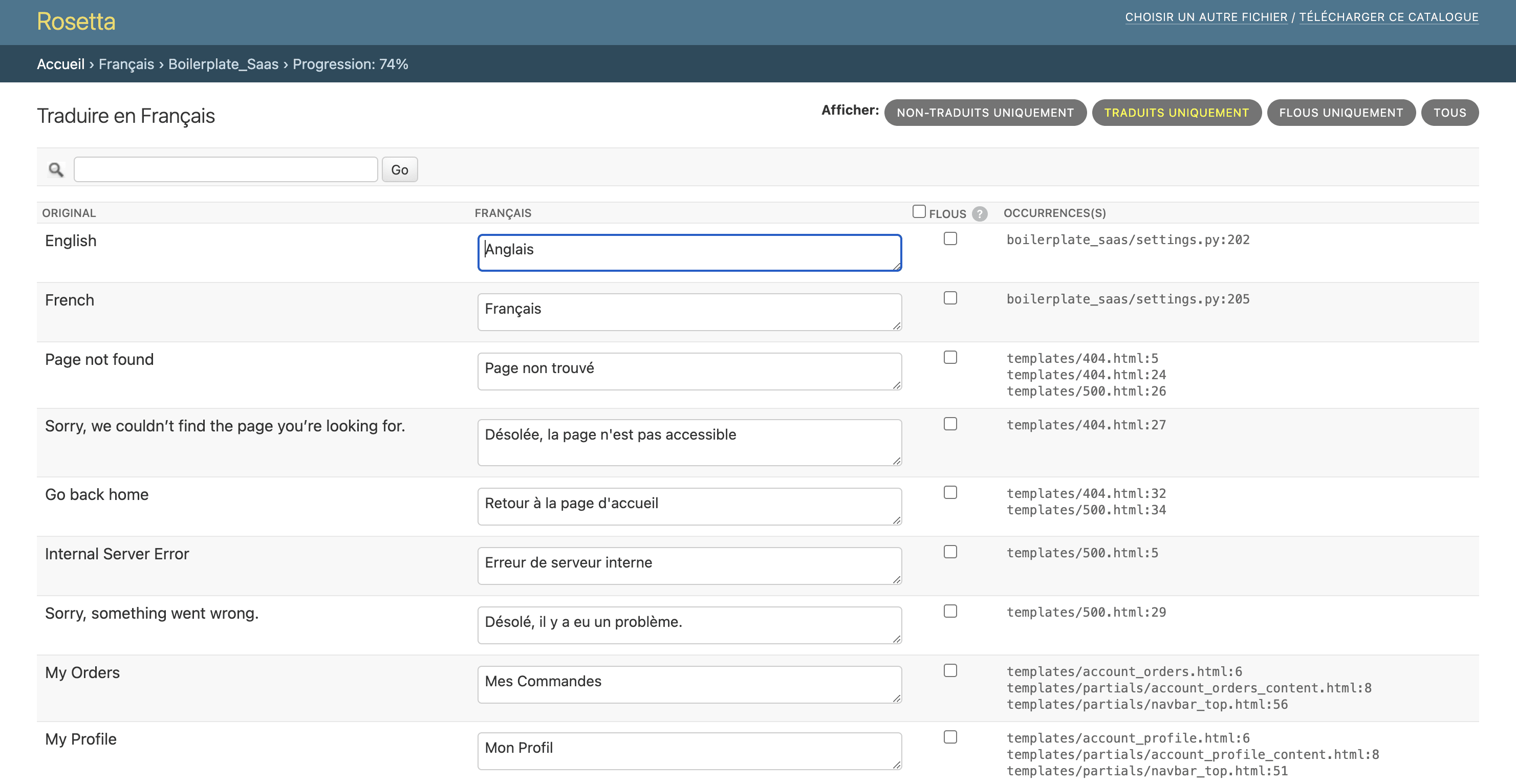
Rosetta Interface Preview
Django-Parler
Django-parler is a library for managing multilingual content in Django. It provides a simple way to translate dynamic model content in your Django application.
Key files
In PyBoilerplate, Django-parler is primarily used to handle FAQ translations, as FAQs are managed through Django models rather than being hardcoded in templates.
saas/
├── app_main/
│   ├── models.py      # FAQ model definition and database structure
│   ├── admin.py       # Admin panel configuration for FAQ management
│   └── views.py       # FAQ display logic and language handling
FAQ Implementation
# app_main > models.py

from django.db import models
from parler.models import TranslatableModel, TranslatedFields

class Faq(TranslatableModel):
    translations = TranslatedFields(
        question=models.CharField(max_length=200),
        answer=models.TextField(),
        category=models.CharField(max_length=50),
    )
This allows FAQ content to be managed and translated directly through the admin interface.
Language Configuration
To add new languages, configure them in settings.py:
# saas > settings.py

PARLER_LANGUAGES = {
    1: (
        {'code': 'en'},  # Default language
        {'code': 'fr'},
        # Add more languages as needed
    ),
}
Access Django-Parler
Django-parler is activated for the FAQ model, which means you can manage translations for FAQ entries through Django's admin panel. Each model using django-parler will display language tabs in the admin interface for adding and editing translations.
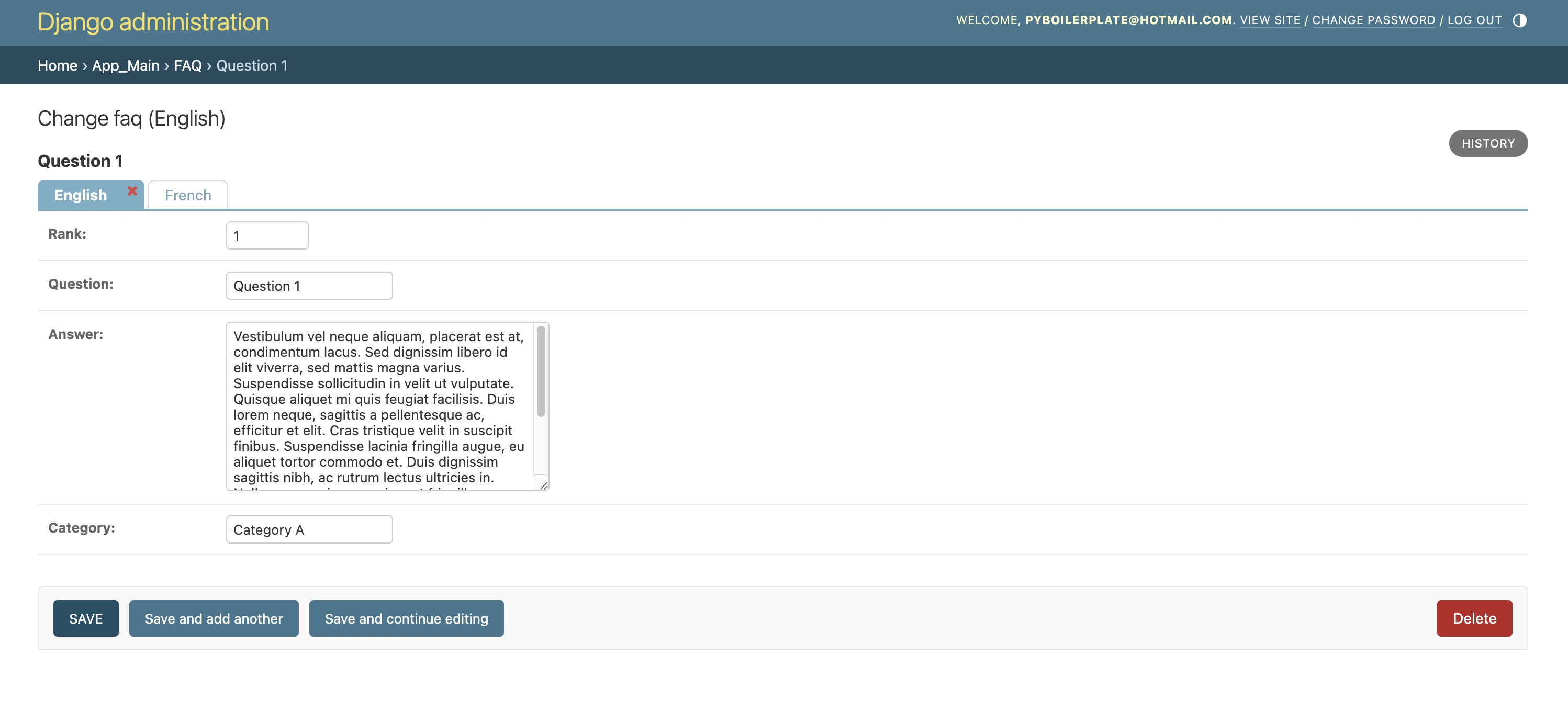
Django-Parler interface
Django-Parler Official Documentation: Complete guide for model translations and configuration
PyPI Package: Installation instructions and latest releases